
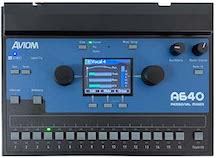
Firmware for the A640 Personal Mixer
The A640 firmware can be updated by downloading the new files, copying to a USB flash drive, and loading into the A640 using the USB File Transfer function found in the Mixer Setup window.
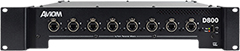
Firmware for the D800 & D800-Dante
Two types of firmware are used on D800 Series products. To update the Aviom firmware on your D800 or D800-Dante A-Net Distributor, download the file, copy to a USB flash drive, and load onto the unit using the USB port on the front panel. Updates to the Dante firmware on the D800-Dante require a connection to a Mac/PC computer and the Dante Controller software from Audinate. See the Dante Firmware Updates in the More Info section below.
More Info & Download
Download D800 Aviom firmware v5.06
Release date: September 30, 2025
More Info
Determining Your Firmware Version
The D800 does not provide a means for displaying the current Aviom firmware version, so if you’re not sure if you have the latest firmware, it’s best to download and install the current firmware from the link above. If you have the A640 Personal Mixer, the version number of the D800’s firmware is displayed in the About This Mixer window.
Updating Your Aviom Firmware
To update the D800 or D800-Dante’s Aviom firmware, simply download the firmware file from the link above and copy it onto a compatible USB flash drive for loading onto the D800. Files must be copied to the root level of the flash drive in a specific folder path: Aviom/Device_Update. Do not alter the folder structure or file/folder names.
Power up the D800 with the USB memory device inserted to start the process.
For detailed instructions, download the PDF “D800 & D800-Dante Firmware Updates.”
Dante Firmware Updates for the D800-Dante
In addition to the D800/D800-Dante Aviom firmware (installed via the USB port), users of the D800-Dante need to maintain their unit’s Dante firmware. This requires a Mac/PC computer connected to the Dante Primary port on the D800-Dante. You also need the Dante Controller software used for configuring Dante-enabled devices and controlling signal routing in the Dante network. Dante Controller contains a built-in firmware update tool.
Additional information about Dante and Dante-compatible products is available on the Audinate website.

Dante Controller Mac/PC
As of the July 2019 release, Audinate’s Dante Controller v4.x.x and above includes the Dante Updater utility which simplifies the firmware update process for all Dante devices in a network. The separate Firmware Update Manager is no longer required.
Warning: Do not use legacy Audinate Firmware Update Manager software in an attempt to update Dante firmware. Your Aviom Dante-enabled product can be rendered unusable if you do. Any Dante firmware updates will be released via Dante Controller.
Troubleshooting
For assistance with updating the firmware on your D800 or D800-Dante, contact Aviom Customer Service online or at 610-738-9005 ext. 2.

Firmware for the D400-Dante
To update the Dante firmware on your D400-Dante A-Net Distributor, use the Dante Controller software from Audinate to download the new firmware file and install it using the built-in Dante Updater. The standard A-Net version of the D400 does not require Aviom firmware updates.
More Info & Download
Users of the D400-Dante need to maintain their Dante firmware and may also need the Dante Controller software used for configuring Dante-enabled devices and controlling signal routing in the Dante network. Additional information about Dante and Dante-compatible products is available on the Audinate website.
Dante Controller Mac/PC
As of the July 2019 release, Audinate’s Dante Controller v4.x.x and above includes the Dante Updater utility which simplifies the firmware update process for all Dante devices in a network. The legacy Firmware Update Manager software tool is no longer required.
Warning: Do not use legacy Audinate Firmware Update Manager software in an attempt to update Dante firmware. Your Aviom Dante-enabled product can be rendered unusable if you do. Any Dante firmware updates will be released via Dante Controller.
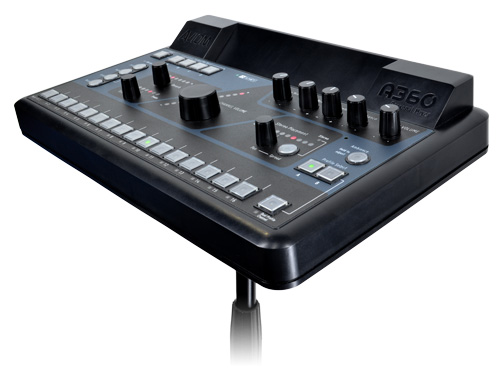
Firmware for the A360 Personal Mixer
The A360 firmware can be updated by downloading the current files, copying to a USB flash drive, and loading onto the A360.
More Info & Download
More Info
Download “A360 Firmware Updates.”
Determining Your Installed Version
To avoid unnecessarily “updating” your firmware, you can first check your A360 to see what version firmware is currently installed.
To display the firmware version on your A360, slide the rear-panel Mode switch to PROGRAM. Then press and hold the AMBIENCE button and press channel button 14. Release the buttons. The channel Mute LEDs illuminate in a pattern showing the firmware version your A360 is running (LEDs 7, 8, 11, and 13 indicate that the current version is installed).

The current version of the A360’s firmware as displayed on the unit is v3.28, indicated by the channel Mute LEDs as described above.
If your unit has any other firmware version, we recommend that you update your firmware. A360 Personal Mixers built after January 2015 should already have the current firmware installed.
Updating Your Firmware
To update the A360 firmware, download the firmware file from the link above and copy it onto a compatible USB flash drive for loading onto the A360. For detailed instructions, download the PDF “A360 Firmware Updates.”
Note: Updating each unit will take several minutes, depending on the complexity of the firmware update and the speed of your USB flash drive. It is important that, once you start the update, you allow the process to finish completely. Interrupting the firmware update could render the unit unusable.
Troubleshooting
Most issues with A360 firmware updates are related to the performance of the USB flash drive in the A360. Some USB flash drives are designed to work only in computers, which can download custom drivers for that USB device from the internet. And because the speed and performance of USB drives vary widely, not all USB drives can be successfully mounted by the A360.
However, some USB drives are simply very slow to respond, so before concluding that you have an incompatible USB thumb drive, be sure to give the unit at least a full minute to respond.
For assistance with updating the firmware on your A360, contact Aviom Customer Service online or at 610-738-9005 ext. 1.
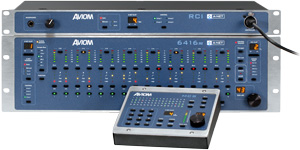
Firmware for the Pro64 Series
Firmware for Pro64 devices can be updated through a direct connection to a PC or over the Pro64 A-Net network. The Pro64 Network Manager PC application is used to manage firmware files and to update each Pro64 Series device.
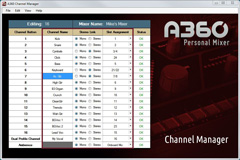
A360 Channel Manager
A360 Channel Manager is a PC-based application used to created custom channel configurations for each A360 Personal Mixer in a system.
A360 Display for iOS
A360 Display is an iOS® app that enhances the user interface of the A360 Personal Mixer with channel names and user-selectable views that show the mix settings and more.
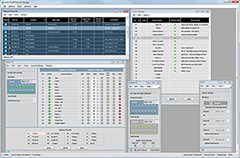
Pro64 Network Manager
Pro64 Network Manager™ is a free PC application that provides status monitoring and control of a Pro64 digital snake or audio network from a central location.